The Order Manager owns three main screens
- The order status screen. This is the HOME screen when you enter the Order Manager
- The order detail screen
- The search bar on the left which is always in place.
Tutorial mode
A tutorial mode is available by clicking the checkbox for tutorial in the header navigation bar.

1. Order status screen
When you are logged in you see a list of all your active buyer orders in the middle and their status.
On the left you find the order status search bar.
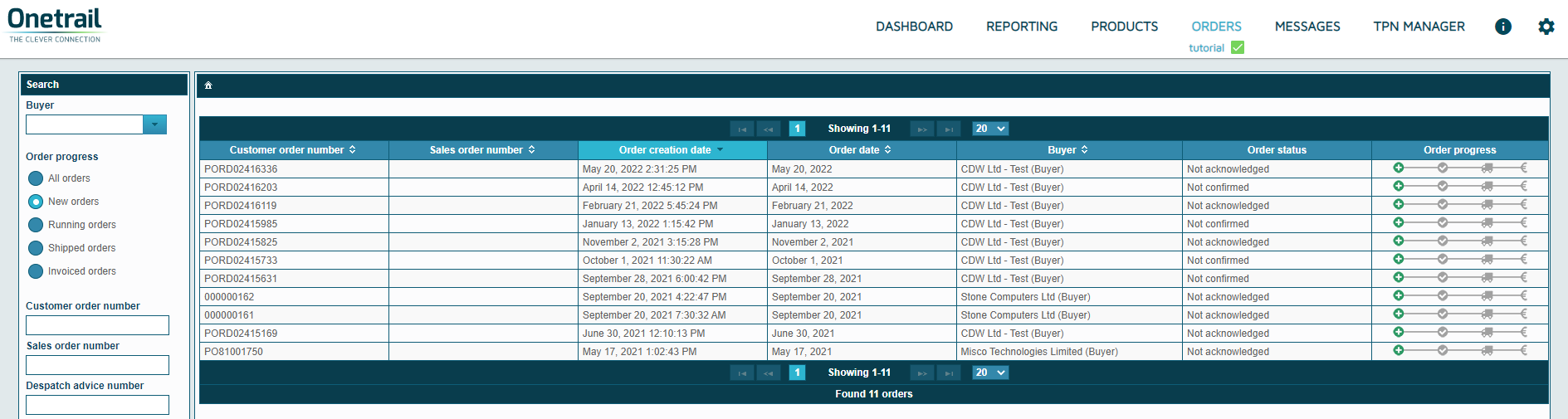
List of all active buyer orders
This is how to read each column of your active buyer orders.
Column header | Additional information | Icon |
Customer order number | The buyer reference | |
Sales order number | Your sales order number | |
Order creation date | The order creation date and time | |
Order date | Date the order has been send to you | |
Buyer | Name of your Customer | |
Order status | Your Order can have the following status:
| |
Order progress | Your order can have one of the following four progress stages: | |
1 - Sent | ||
The order is in error |
| |
The order is new received by you |
| |
2 - Confirmed | ||
You have not send an order status yet |
| |
You have confirmed the order |
| |
You have deleted the order or you have put the order is on-hold |
| |
3 - Shipped | ||
You have fully shipped the order |
| |
You have partially shipped the order |
| |
4 - Invoiced | ||
You have fully invoiced the order |
| |
You have partially invoiced the order |
|


Invoice settings
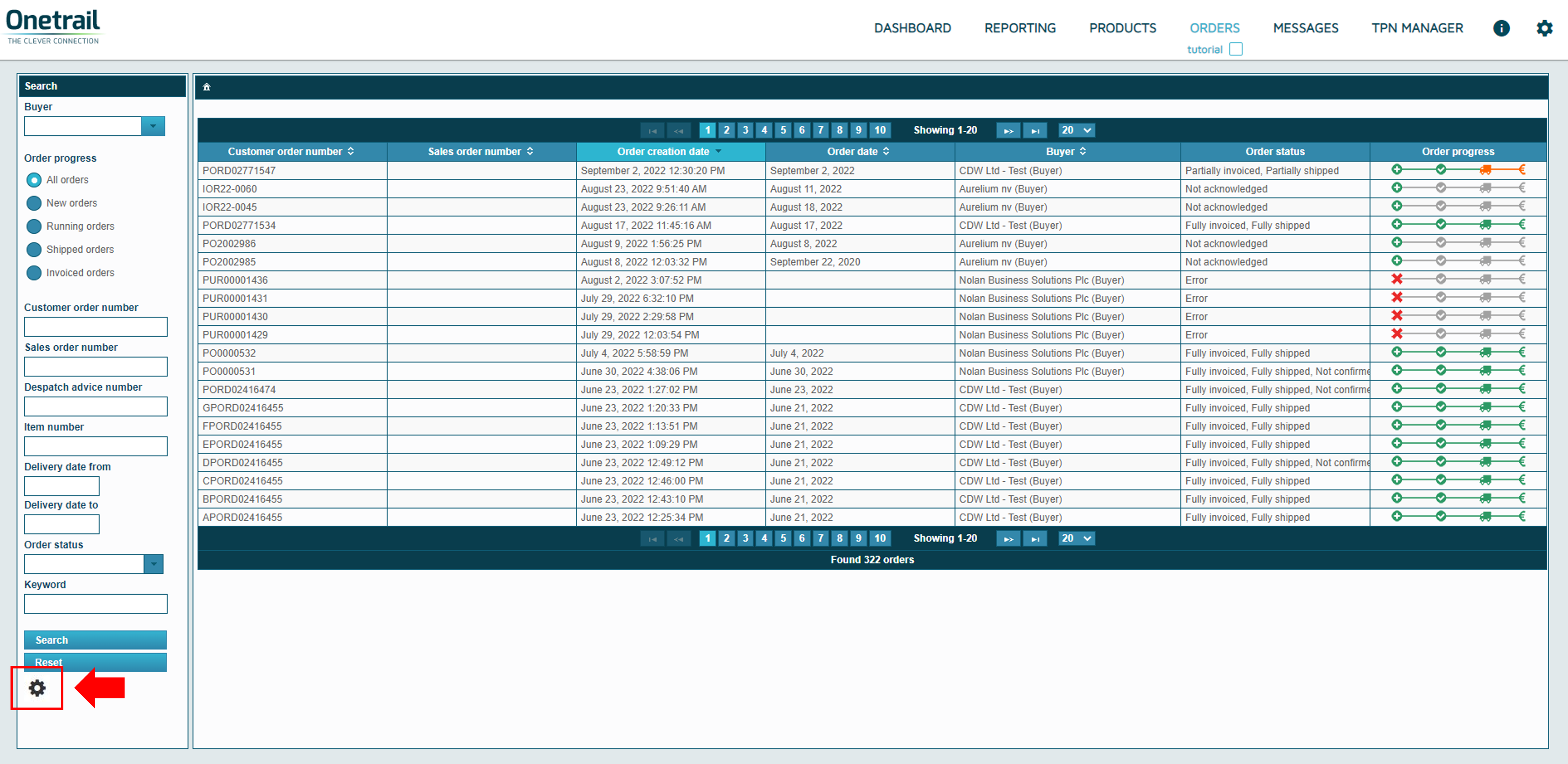
By clicking the Settings icon  on the lower left side of the product page in the Order Manager, the settings screen will become available.
Note: This is not the icon on the upper right side of the page, these are for the general settings of Onetrail.
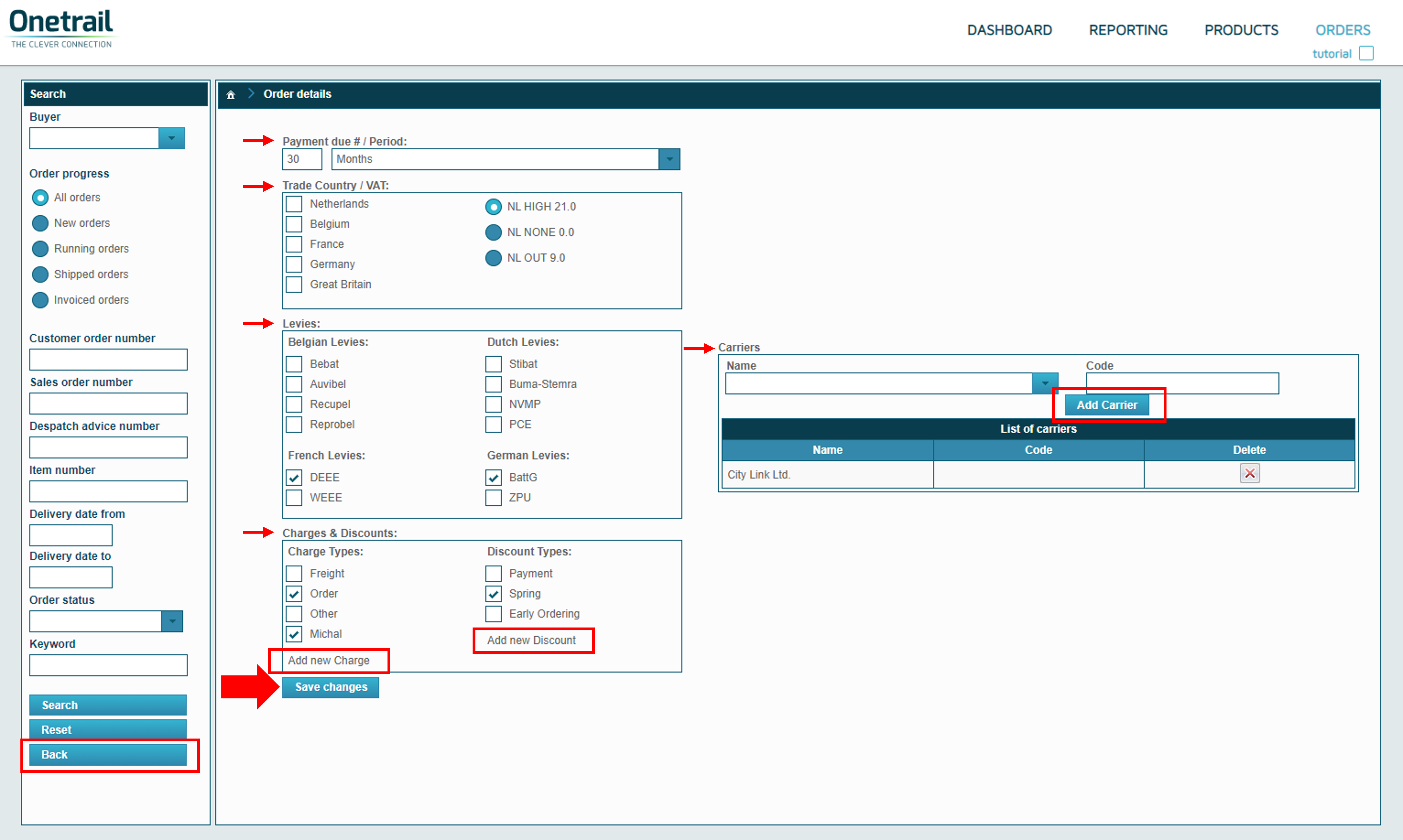
In this settings screen you can change and adjust:
- Payment due # / Period
- Trade Country / VAT
- Levies
- Charges & Discounts
- By clicking Add new charge it is possible to add another Charge type.
- By clicking Add new discount it is possible to add another Discount type.
Carriers
- By clicking Add Carrier it is possible to add another Carrier.
Adjust the settings and click on 'Save changes'. The settings will be changed in the 'Create Invoice' screen.
Click on 'Back' at the bottom of the order status search bar on the left to exit this screen.